
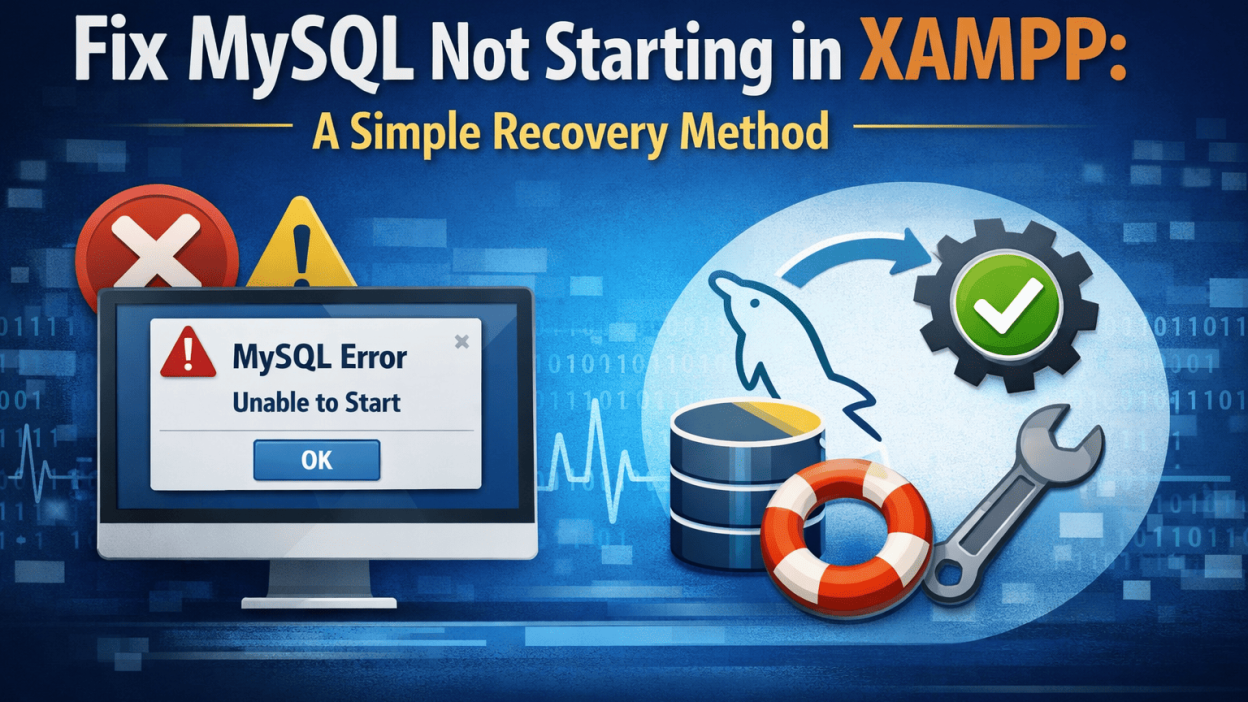
If you’re a developer or just someone running a local web server, there are few things more frustrating than firing up XAMPP and seeing MySQL fail to start with that dreaded “shutdown unexpectedly” error. Panic can set in—especially if you have databases with important data. Before you start reinstalling XAMPP or scouring forums for hours, there’s a straightforward recovery method that often works.
Why Does MySQL Fail to Start in XAMPP?
MySQL in XAMPP can stop working for several reasons:
- Unexpected shutdown of your computer while MySQL was running
- Corruption in MySQL data files
- Port conflicts (usually port 3306 being used by another service)
- Incorrect configuration changes
While port conflicts and configuration issues require different fixes, one of the most common problems—corrupted data files—has a surprisingly simple solution using XAMPP’s built-in backup.
The Quick Recovery Method: Restore from Backup
XAMPP maintains a backup of your MySQL data files. By replacing the potentially corrupted files in your active data directory with these backups, you can often get MySQL running again in minutes.
Step-by-Step Guide
Step 1: Close Everything
First, ensure XAMPP is completely closed. Click “Quit” in the XAMPP control panel and verify no Apache or MySQL processes are running in your system tray or task manager.
Step 2: Locate Your Backup Directory
Navigate to the MySQL backup folder. The typical path on Windows is:
C:\xampp\mysql\backup\On macOS or Linux, you’ll find it at:
/Applications/xampp/xamppfiles/var/mysql/backup/ (macOS)
/opt/lampp/var/mysql/backup/ (Linux)
Step 3: Copy the Backup Files
Open the backup folder and select all files EXCEPT ibdata1. This file is crucial for database structure and shouldn’t be replaced in this process.
Step 4: Replace the Data Files
Navigate to your MySQL data directory (typically C:\xampp\mysql\data\ on Windows). Paste the copied files here, choosing to replace the existing files when prompted.
Step 5: Restart and Test
Launch XAMPP again and try starting MySQL. In many cases, this simple replacement resolves the startup issue immediately.
Why This Works (And Important Considerations)
This method works because it replaces potentially corrupted database files with known-good versions from the backup. However, there are important caveats:
- You may lose recent data – The backup files might not contain your most recent database changes. Only data up to the last backup will be restored.
- The
ibdata1file is special – This file contains critical structural information about your databases. Unless you have a specific reason and understand the consequences, avoid replacing it with this method. - Backup your data first – Before attempting this fix, if you can access your data through other means or have valuable information in your databases, consider exporting it first.
If Problems Persist
If MySQL still won’t start after trying this method, you might need to explore other solutions:
- Check port conflicts: Use
netstat -ano | findstr :3306(Windows) orlsof -i :3306(macOS/Linux) to see if another service is using MySQL’s default port. - Review error logs: Check
C:\xampp\mysql\data\[your-computer-name].errfor specific error messages. - Try a full reinstall: As a last resort, back up everything and reinstall XAMPP.
Prevention Tips
- Always stop MySQL properly through the XAMPP control panel before shutting down your computer.
- Regularly export important databases as SQL dump files.
- Consider copying your entire
mysql/datadirectory periodically for more comprehensive backups.
This backup restoration method has saved me hours of troubleshooting on multiple occasions. While it’s not a silver bullet for every MySQL startup issue, it’s surprisingly effective for many common corruption problems. The next time you encounter that frustrating MySQL shutdown error in XAMPP, try this simple file replacement before diving into more complex solutions.
Have you tried this method? Do you have other tricks for fixing MySQL in XAMPP? Share your experiences in the comments below!